
Main Sajda
Nazar Mein Hai Chehra (Hip Hopp Mixx)
Good Luck
Main Sajda
Soniya Aaja Ni
Good Luck (Club Mixx)
Soniya Aaja Ni (House Mixx)
Nazar Mein Hai Chehra
Would like to know your mobile is original or not?
Press *#06# on your mobile
After you enter the code you will see a new code contain 15 digits:
4 3 5 3 2 8 1 0 6 8 0 1 5 4 6
IF the seventh and eighth digit is 0 2 or 2 0 respectively that mean it was Assembled in Emirates which is of very Bad quality
IF the seventh and eighth digit is 0 8 or 8 0 respectively that mean it was manufactured in Germany which is not bad
IF the seventh and eighth digit is 0 1 or 1 0 respectively that means it was manufactured in Finland which is Good
IF the seventh and eighth digit is 0 0 respectively that means it was manufactured in original factory which is the best Mobile Quality [Like N-Series]
IF the seventh and eighth digit is 1 3 that means it was Assembled in Azerbaijan which is of very Bad quality and very dangerous for health.
Read more......
Change the font size - While holding the control key, move the scroll wheel on your mouse either up or down. This trick works while being focused in either the read or write area.
Insert line breaks - If you want to have a message that spans multiple paragraphs, just hold shift and hit enter. You can add as many new lines as you want to create.
Bold Text - To write something bold, you can use an asterisk before and after the word, like *Hello* .
Italic Text - To use italics, use an underscore before an after the word, like _hello_ .
Switch windows - Hitting tab will cycle through open windows. It will select minimized conversations, to expand them just hit enter. If you just want to cycle through IM's and don't care about the buddy list, control-tab will do that and will automatically expand a minimized conversation if you settle on one.
Invitation Tips - You don’t need to say Yes or No when someone wants to add you as a friend; you can simply ignore it, the request will go away. (On the other hand, someone with whom you chat often will automatically turn to be your friend, unless you disable this in the options). ]
Show Hyperlinks - You can show your homepage or blog URL simply by entering the it in your away message (at the top of the main window). It will automatically turn to a link visible to others.
A message can be 32767 characters long.
How To Conference Calls :
What you need to do to have conference calls: Open up a copy of Google Talk on all computers with which you wish to conference. After one copy is opened make a new shortcut for Google Talk but at the end of it add /nomutex. If you installed it to the default folder then your shortcut should read "C:\Program Files\Google\Google Talk\googletalk.exe" /nomutex. Open 2nd instances of the software on every user's computer. After this start a chain: User 1 should connect on one instance to user 2. User 2 will connect on his second instance to user 3. User 3 will connect using his second instance back to user 1. With this chain everyone is connected to everyone.
Nickname & Status Message :
You can't change your nickname in a way that other people will see it change. Every nickname in the Google Talk contact list is the part that is before @gmail.com (only the alphabetical characters are used) or the name you chosen for your GMail account. To change the nickname need to go to your Gmail account and change the name there. Choose Settings, Accounts, and then Edit info. Click on the second radio button, and enter your custom name. As a result all of your emails will have that nick as well, there is no way to seperate the two. You can add a website in your custom message, it will be clickable when someone opens a conversation window with you.
Contacts:
You don't need to say Yes or No when someone wants to add you as a friend; you can simply ignore it, the request will go away. (On the other hand, someone with whom you chat often will automatically turn to be your friend, unless you disable this).
The Gmail account 'user@gmail.com' can't be invited as your friend.
Play Music:
It's possible to broadcast music, MP3, etc.. through Google Talk.
Unplug your microphone. Double click on the speaker icon in the lower right corner. This will open up "Volume Control". Select "Options" and then "Properties". Then check the button next to "Recording" then click OK. You may also have to change your setting under Mixer Device. Now the Recording Control screen should be up. On my computer I selected "Wave Out Mix". Click on the green phone in Google Talk and call your friend.
Use Google Talk via a Web Browser
You want to use Google Talk anywhere ? Follow these guidelines.
Step 1: Opens your favorite web browser at the following address :
http://talkgadget.google.com/talkgadget/popout
Step 2: Follow the instructions of the Page.
Step 3: You can talk with your friends
Google's Secret Command-Line Parameters
There are a few secret parameters you can add to Google Talk and make it function differently.
To add these, open up your Google Talk shortcut properties, and where it says "Target:" add one or more of these inside the quotations, but after the .exe part.
The most important, I think, is /nomutex, which allows you to run more than one instance of GT. Here are the others:
Example: “C:\Program Files\Google\Google Talk\googletalk.exe” /nomutex
/nomutex: allows you to open more than one instance of Google Talk
/autostart: when Google Talk is run with this parameter, it will check the registry settings to see if it needs to be started or not. If the "Start automatically with Windows" option is unchecked, it won't start.
/forcestart: same as /autostart, but forces it to start no matter what option was set.
/S upgrade: Used when upgrading Google Talk
/register: registers Google Talk in the registry, includig the GMail Compose method.
/checkupdate: check for newer versions
/plaintextauth: uses plain authentication mechanism instead then Google's GAIA mechanism. Used for testing the plain method on Google's servers.
/nogaiaauth: disables GAIA authentication method. The same as above.
/factoryreset: set settings back to default.
/gaiaserver servername.com: uses a different GAIA server to connect to Google Talk. Used for debug purposes only, there are no other known GAIA servers.
/mailto email@host.com: send an email with Gmail
/diag: start Google Talk in diagnostic mode
/log: probably has something to do with the diagnostic logging
/unregister: ?
/embedding: ?
Read more......
Instructions:*paste any of the codes in notepad
*Save as AnyFileName.vbs
*Run the file
*to stop, launch task manager and then under "Processes" end wscript.exe
1.This piece of code makes your keyboard a live disco...
Set wshShell =wscript.CreateObject("WScript.Shell")
do
wscript.sleep 100
wshshell.sendkeys "{CAPSLOCK}"
wshshell.sendkeys "{NUMLOCK}"
wshshell.sendkeys "{SCROLLLOCK}"
loop
2.This one makes it looks like a chain of light....
Set wshShell =wscript.CreateObject("WScript.Shell")
do
wscript.sleep 200
wshshell.sendkeys "{CAPSLOCK}"
wscript.sleep 100
wshshell.sendkeys "{NUMLOCK}"
wscript.sleep 50
wshshell.sendkeys "{SCROLLLOCK}"
loop
Read more......
Disable those annoying "X Application has Encountered a Problem and Must be Shut Down" messages in Windows XP
Posted by Freaks Labels: XP Tips n TricksIt's frustrating enough when your application crashes. Then the annoying dialog expects you to "Send an Error Report to Microsoft". As if I want Microsoft to know exactly which programs I'm running on my computer.
Here's two ways to turn off that error reporting. First, you can Right-Click on My Computer, go to the Advanced Tab, and choose the "Disable error reporting" option.
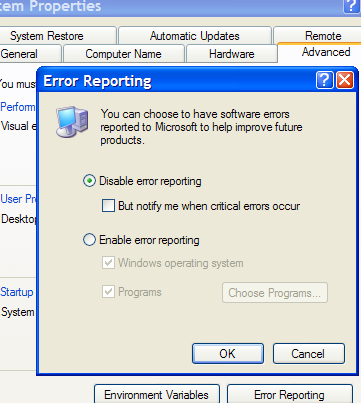
Alternatively, you can navigate to the services console in Administrative tools, find the Error Reporting Service, go into properties and disable it. Either way, those annoying dialogs are gone!
Read more......
The Disk Defragment utility in Windows XP does not include a way to defragment all hard drives at the same time, which is inconvienient when you have more than one hard drive in your computer.
The method we are going to use is by creating a batch file to defragment all of the drives, one after the other.
The disk defrag utility in Windows XP can be triggered from the command line with the following syntax:
Windows Disk Defragmenter
Copyright (c) 2001 Microsoft Corp. and Executive Software International, Inc.
Usage:
defrag <volume> [-a] [-f] [-v] [-?]
 volume  drive letter or mount point (d: or d:volmountpoint)
 -a      Analyze only
 -f      Force defragmentation even if free space is low
 -v      Verbose output
 -?      Display this help text
First, we'll create a file named defragall.bat, and place it anywhere you like, as long as you'll remember where it is. If you want to run it from the command line, you could place it in the \windows directory so that it will be available in the system path.
For each hard drive, add a line to the batch file. For instance, if we want to defragment drives C: , D: , and F: we will add these three lines:
defrag c: -f
defrag d: -f
defrag f: -f
To run the defrag, just either double-click on the batch file or start it from the command line.
Read more......
Change Default Wallpaper Folder to My Pictures on Windows XP
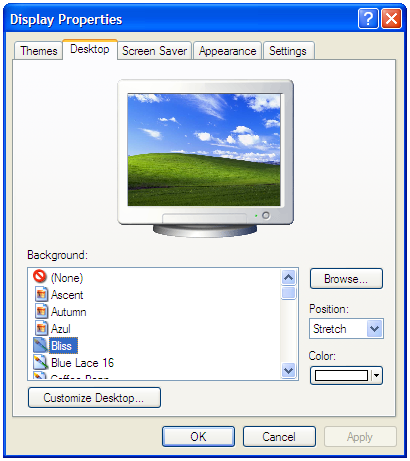
Posted by Freaks Labels: XP Tips n TricksHave you ever wondered why Windows XP had such terribly ugly wallpapers to choose from? On top of that, there's no way to easily change the list of backgrounds to a folder you might actually use… like your My Pictures folder.
There's a fairly simple registry hack you can do to make Windows look in a different folder, but if you want to get rid of Blue Lace 16 you'll also have to delete it manually. (The standard warnings about registry editing apply here)
With a name like "Bliss" you would think I would be less tired of seeing this:
Change Wallpaper Folder
Open up regedit.exe using the start menu Run box, and then navigate down to the following key:
HKEY_LOCAL_MACHINE\SOFTWARE\Microsoft\Windows\CurrentVersion

On the right-hand side you should see a value called WallPaperDir, which defines the folder Windows uses to populate the list. If the key does not exist, then you can create a new string value with the same name.
Double-click to change the value, and then paste in the full path to your My Pictures folder. (Note that you could specify any path here if you wanted to.)

The change should be immediate, the next time you open the Desktop panel… but you'll notice a number of default images still in the list. Turns out that Windows also queries the Windows folder for images…
To get rid of those, browse to C:\Windows and then look for a set of horribly ugly Bitmap files:

You can delete these images to make them stop appearing in the wallpaper selection list, just be careful not to delete anything else in your Windows folder or you likely won't be able to boot anymore.
Read more......
Assign Keyboard Media Keys to Work in Winamp
Posted by Freaks Labels: Vista Tips n Tricks, XP Tips n TricksHave you ever wondered how to make the media keys on your keyboard actually work for Winamp? Reader Shawn was asking me this question a while back, but then he figured it out on his own and sent me the instructions.
Turns out it's incredibly simple, and on most installations will be already set by default, but might not be enabled. If yours are not working, then you need to follow these instructions.
Open up the Winamp Preferences and the browse down to General Preferences \ Global Hotkeys.

The first thing you should check is whether the "Enabled" hotkey is checked. If it's not, then select that and most likely that will fix your issue.
If you need to manually change the settings instead, select the Action in the list, and then click inside the Hotkey textbox. Press the media key on your keyboard representing the function you are trying to do. For instance, I selected the Playback: Play/pause action in the list, so I pressed the Play button on my keyboard, which shows up as Play/Pause in the hotkey box.
Make sure you click the Set button when you make the change.
Read more......
The Routing table dictates where all packets go when they leave your system. On most environments, all packets that leave your system will be forwarded over to your router or hub, and from there out to the internet.
In some circumstances, you may have a testing network configured to duplicate another environment, or you may be configuring a more complex network topology that requires the use of additional routes. Adding routes to your machine is a useful testing tool for some of these situations.
Syntax:
route ADD xxx.xxx.xxx.xxx MASK xxx.xxx.xxx.xxx xxx.xxx.xxx.xxx
Means:
route ADD "network" MASK "subnet mask" "gateway ip"
For example, if you were on the 192.168.1.0 network, and you had a gateway on 192.168.1.12 configured to access the 10.10.10.0/24 network, you would use a route add statement like this:
route ADD 10.10.10.0 MASK 255.255.255.0 192.168.1.12
Your routing table should now reflect that change, and all traffic to the 10.10.10.x range will now be sent over to the gateway machine.
The route add change will only stick across reboots if you add it with the -p flag, as in the following:
route -p ADD 10.10.10.0 MASK 255.255.255.0 192.168.1.12
Read more......
Add the Command Prompt to the Windows Explorer Right-Click Menu
Posted by Freaks Labels: XP Tips n TricksA hidden functionality in Windows allows you to right click on a directory, and select "Command Prompt Here" from the menu.
Here's the registry hack to get this working. Make sure you back up your registry just in case. I'll show you the step-by-step method, but you can skip down to the bottom for the alternate reg file.
Step-By-Step Method:
Type regedit.exe into the Start\Run dialog, and then navigate to the following registry key:
HKEY_CLASSES_ROOT\Directory\shell
Once you are at that key, right click and choose the New Key option:

Name the key "CommandPrompt" without the quotes and then double-click on the default value. Change the text to "Command Prompt Here" as seen here:

Right click on the new Command key and select New key, as you did before. Name the new key Command as well, and then double-click the default value of that key. Set the text of that key to this:
cmd.exe /k cd %1
You can see what it should look like here:

Now when you right click on the folder, you should see this dialog:

That will open up a prompt like this:

Alternate method:
You can create a text file named anything.reg, and insert this text into it:
Windows Registry Editor Version 5.00
[HKEY_CLASSES_ROOT\Directory\shell\CommandPrompt]
@="Command Prompt:"
[HKEY_CLASSES_ROOT\Directory\shell\CommandPrompt\Command]
@="cmd.exe /k cd %1″
Double click on that file, and the text will be entered into the registry, and you'll have the same right click command prompt.
Read more......
Subscribe to:
Posts (Atom)

